See every step, from anywhere. No more coding blind.
Already using Claude Code, OpenAI Codex, OpenCode or DeepSeek Harness? Install Kiteline on your computer and grant access once — no API key, no configuration changes. Every session shows up on your phone: follow each step live and hold to talk to assign work. When the agent finishes, it tests in a real browser and sends screenshots and a test report to your phone.
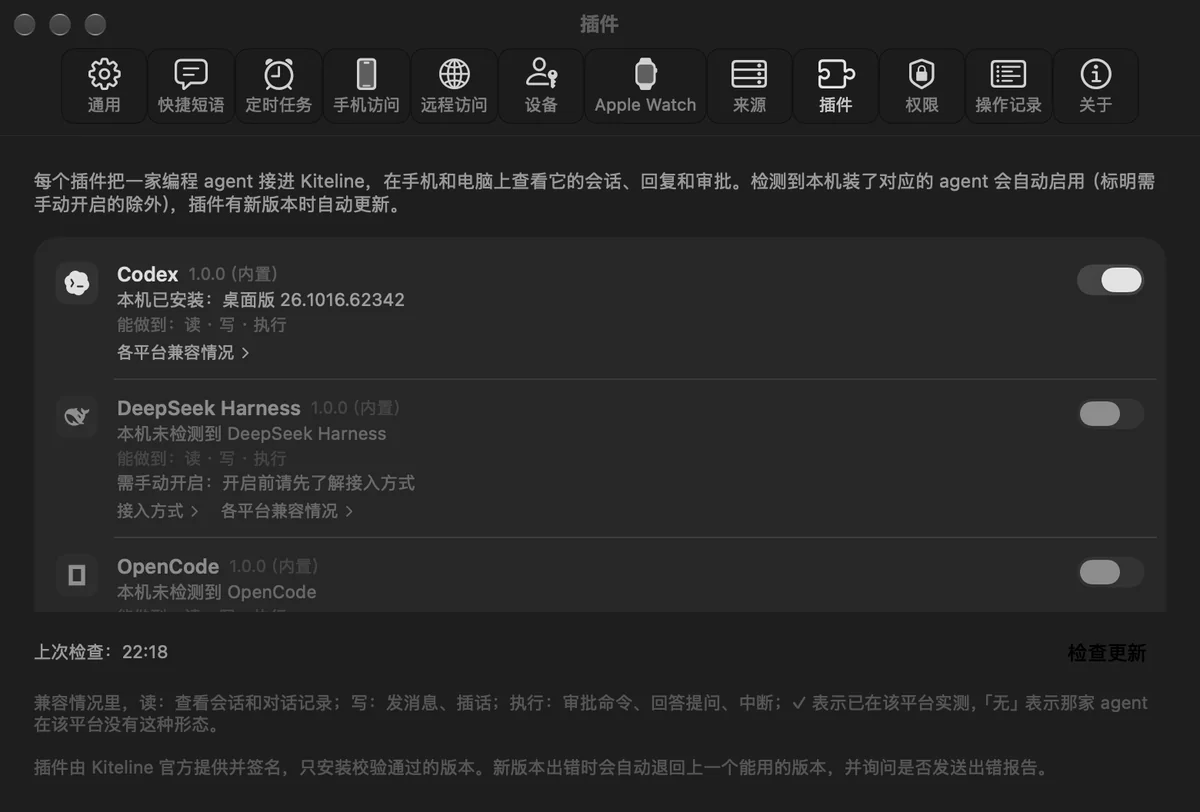
Kiteline works with the Claude Code, OpenAI Codex, OpenCode and DeepSeek Harness sessions already on your computer. It never asks for your API key and calls no models on your behalf; Claude Code and Codex need no configuration changes, and Kiteline sets up the OpenCode plugin for you. Install Kiteline, grant access once, and every session appears on your phone; more agents join through a plugin from the plugin marketplace.
1
Download Kiteline
Mac, Windows or Linux. Free on the computer.
2
Grant access once
Follow the readiness check, which explains what each permission is for. Open your agents as usual — nothing else to set up.
3
Every session on your phone
Scan the QR code or enter the 6-digit code on your iPhone; every agent session appears automatically.
ANTHROPIC
Claude Code
Sessions in local VS Code windows, on Remote-SSH hosts and in the terminal
No changes to Claude Code’s configuration — Kiteline reads the session record it already writes
Replies take the same front-end path you would, and fail loudly rather than reach the wrong session
Switch permission mode, model and effort; compact the context with one tap
OPENAI
OpenAI Codex
Sessions in the terminal, the VS Code extension and the ChatGPT desktop app
Connected through Codex’s own interfaces — it never needs to be in the foreground
Messages, approvals and answers are submitted directly, with no simulated keystrokes
Tested on Mac, Windows and Linux
OPEN SOURCE
OpenCode
OpenCode sessions in the terminal
Connected through a plugin Kiteline installs for you; turn it off at any time
Messages, approvals and answers are submitted directly
Shares the same alerts, notifications and to-dos as the other agents
DEEPSEEK
DeepSeek Harness
Sessions in the desktop app and the command line
Connected through DeepSeek Harness’s own local service; messages, approvals and answers are submitted directly
It offers no third-party interface, so Kiteline must read its local connection key (not a model API key). It stays off until you review how it connects and turn it on under Settings → Plugins
Tested on Mac, Windows and Linux
PLUGINS
Plugin marketplace
Qwen Code and more agents, one plugin each
Plugins come from Kiteline and are signed; only verified versions install
Updates install automatically; if a new version fails, Kiteline rolls back to the last working one
A new agent’s mark, name and approval buttons come from its plugin — no app update needed
02 · Why Kiteline
Coding agents can work autonomously for hours. Yet every permission request, design decision or plan approval brings them to a halt until a developer responds — and developers are not always at their desks.
Evening rush hour
On the move. On top of every task.
No need to open the laptop: where each agent is, what the page looks like now and whether the tests passed are all clear on your phone. Have a new idea? Hold to talk, and the agent carries on.
Illustrative scene, AI-generated
Waiting is the real bottleneck.
Delivery speed is rarely limited by the model — it is limited by pending human approvals. Kiteline brings each response down to seconds.
Without KitelineActive 1h 45m
Restyle home pageAwaiting approval: rm -rf build (in a meeting)RebuildAwaiting choice: option A or BWrite testsFinished — unnoticed
With KitelineActive 4h 55m
Restyle home pageRebuildWrite testsNext task: asynchronous order export
13:0014:0015:0016:0017:0018:00
≈ 2.8×
Active execution time in the same window.
< 1min
From notification to approval.
0
Completions or interruptions left unnoticed.
Illustrative figures estimated from a typical afternoon; not measured data.
03 · Problems solved
Remove the pauses caused by human-in-the-loop.
Approval requests go unanswered
Instant alerts, one-tap actions
Permission requests, plan approvals and questions are pushed to the lock screen and Apple Watch for immediate action, with follow-up reminders at 10 and 30 minutes.
No visibility into progress
The same view as your desktop
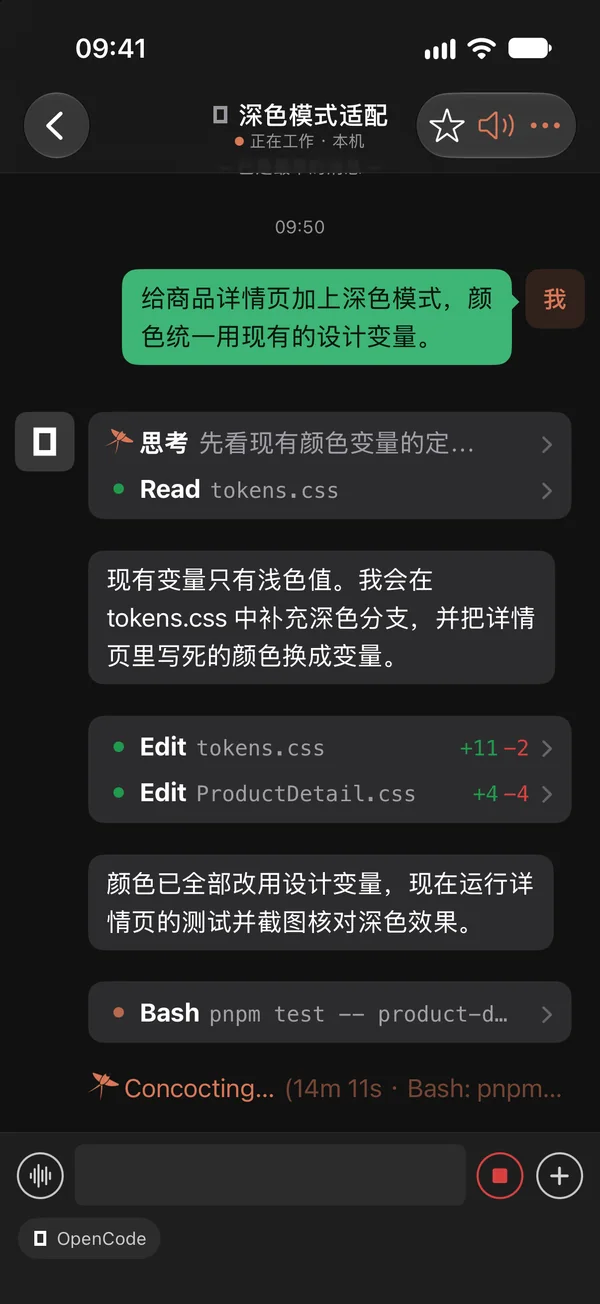
Reasoning, tool calls, diffs, test results and task lists stream in real time, rendered just as on your computer.
Remote sessions are out of reach
Native Remote-SSH support
Add an SSH host and Kiteline deploys a read-only observer automatically, consolidating sessions from local machines, VMs and build servers.
Parallel projects are hard to coordinate
A unified project overview
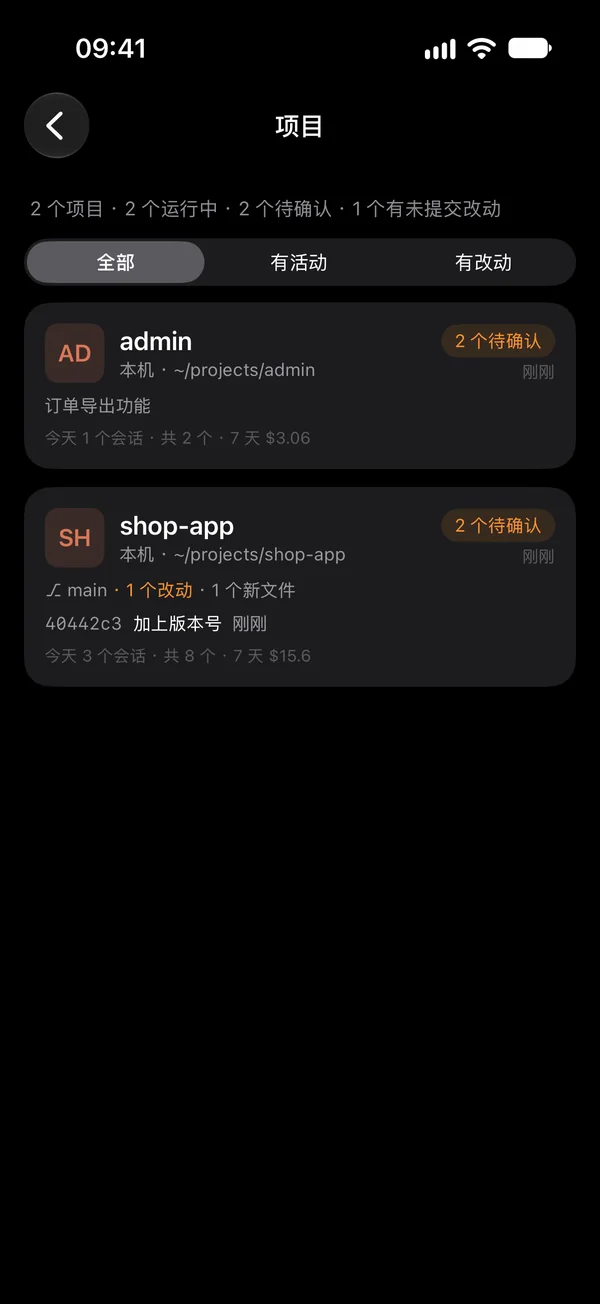
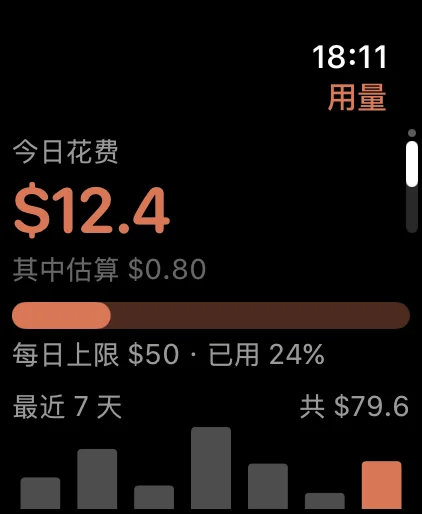
Run status, pending approvals, uncommitted changes, unpushed commits and 7-day cost in one view, with direct task dispatch.
Costs lack transparency
Precise usage and cost reporting
Cost and tokens by day, model, project and host. Set daily budgets and caps with alerts at 80% and 100%.
Failures go unnoticed
Proactive failure alerts
When a session stops on usage limits, context overflow or service overload, you get the cause and expected recovery time. Twenty minutes without progress triggers a stall warning.
04 · Built-in skills
It screenshots and tests its own work. The results come to you.
Away from your desk, you want to know three things: what it looks like, whether it was tested, and whether anything needs you. Kiteline gives every coding agent on your computer three skills so it tells you on its own. They are on by default — no commands to remember, no prompts to change.
Screenshots
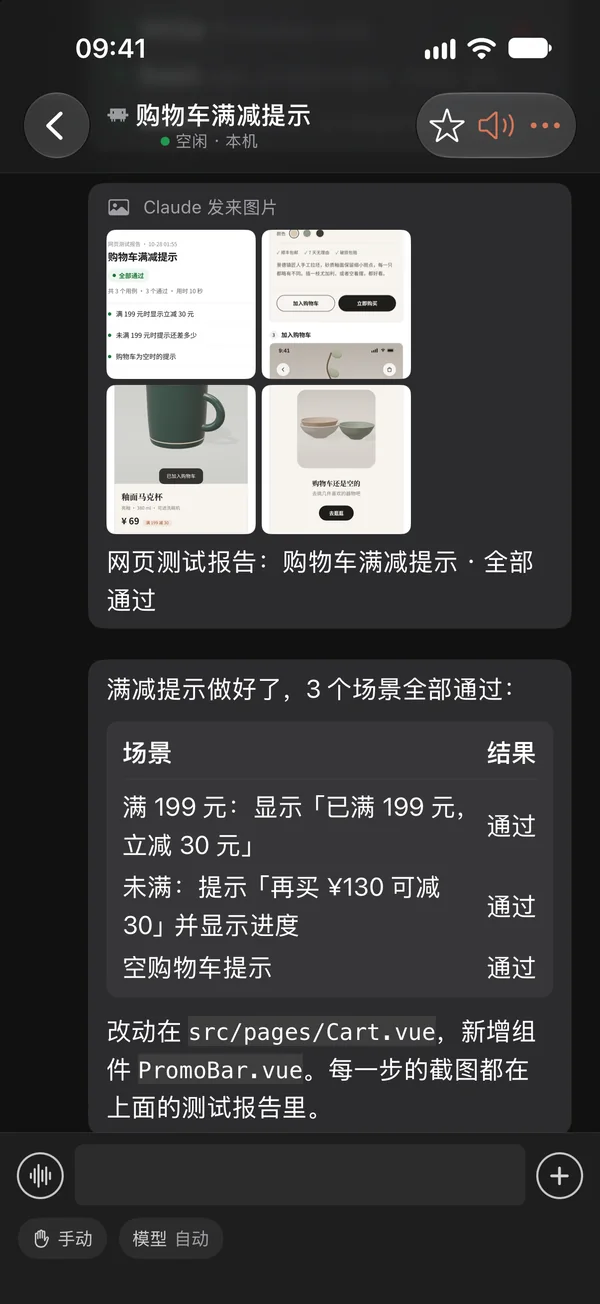
Changed the UI? It sends a screenshot of the page. Ran the tests? It sends the output as an image. Screenshots land in the conversation on your phone, with a lock-screen alert.
Browser tests
When a web feature is done, the agent walks through it in a real browser with Playwright, captures every step and lays out a test report sized for your phone. Failed steps are marked with what was expected and what happened. No Playwright in your project? No problem — nothing is added to it.
To-dos & key info
Things only you can do — creating an account, changing DNS — get their own reminder. Work the agent hasn’t finished goes into the agent’s to-dos with live progress. Accounts, passwords and server addresses arrive as a separate card, easy to copy and save.
Or just ask:Show me a screenshotTest the cartSend me the test server login
3 scenarios · all passed · 10 s
Skills are installed in each agent’s own skills folder, never in your project; Playwright lives in Kiteline’s own folder. Turn each skill off under Settings → General → Agent Integration on the computer.
05 · Features
The full session experience, now on mobile.
Built natively in SwiftUI. Every agent session becomes its own conversation.
01 / Sessions
Every agent, on one screen.
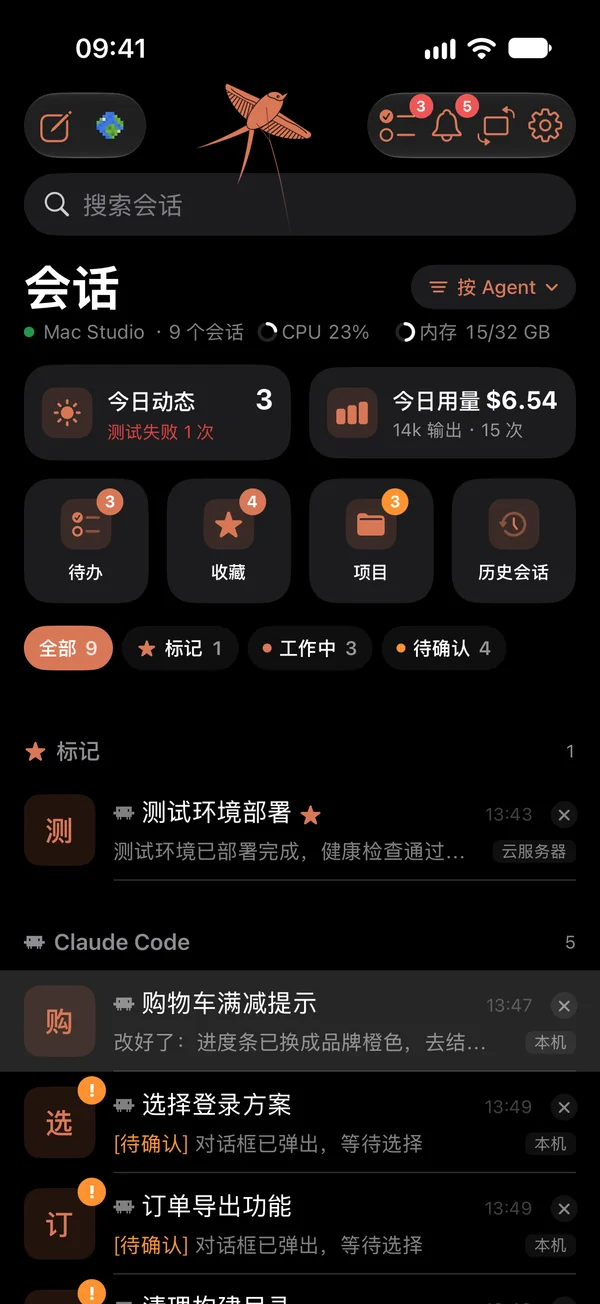
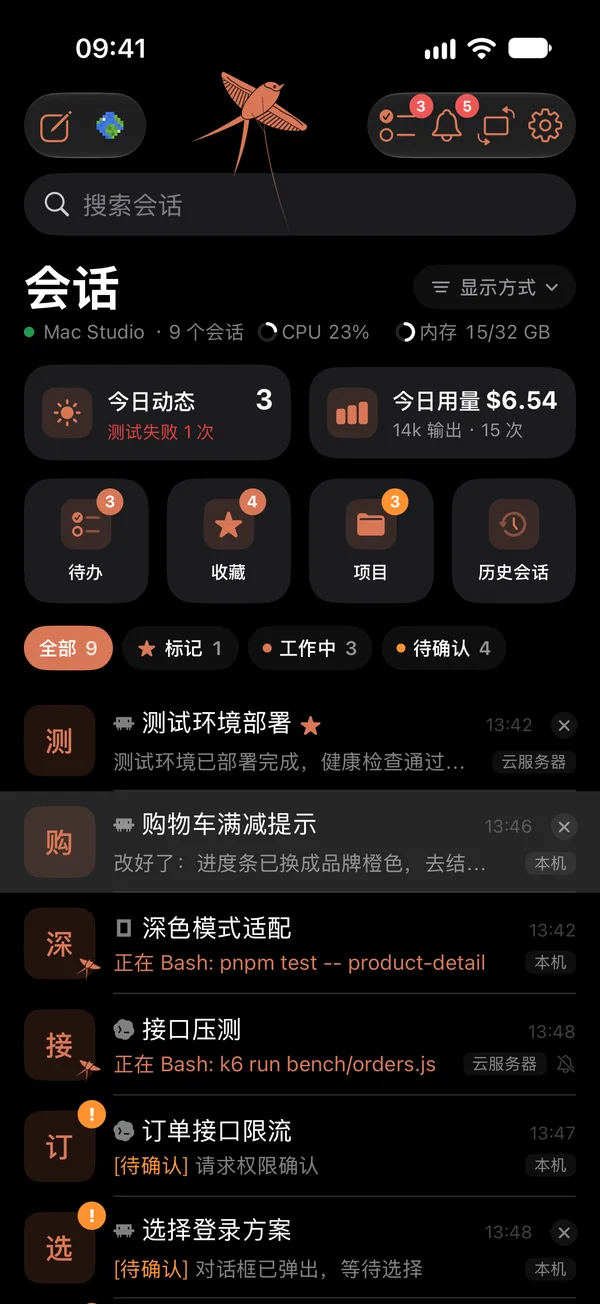
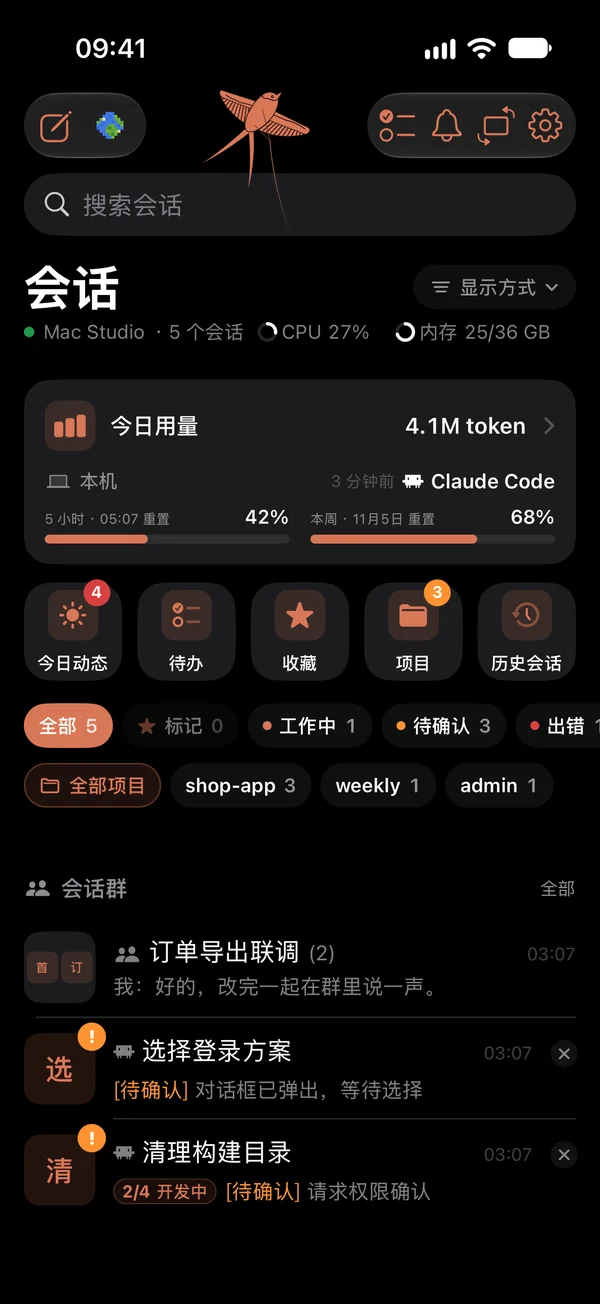
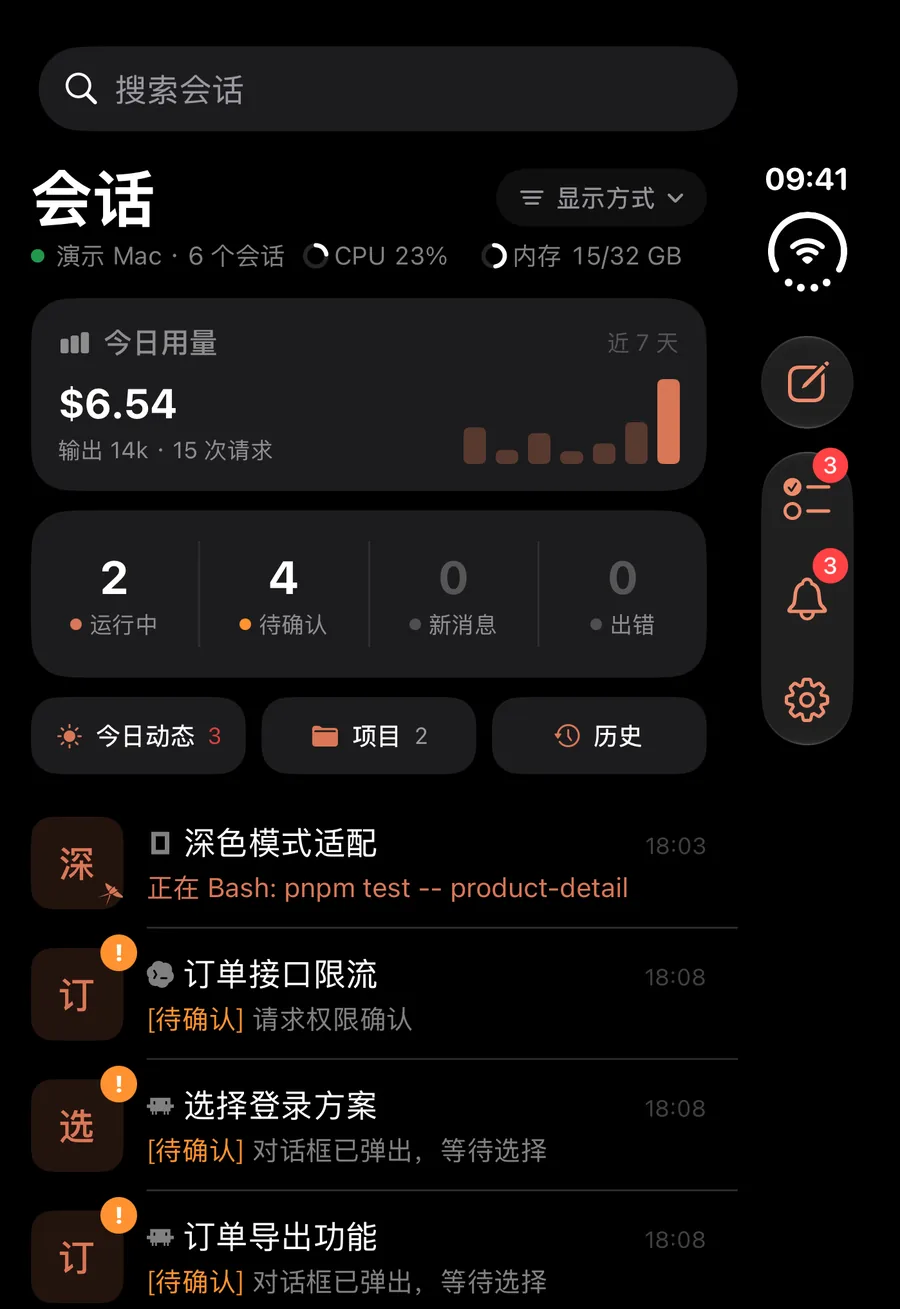
Every session on your computers in one list: Claude Code in VS Code, the terminal and Remote-SSH hosts, plus Codex, OpenCode, DeepSeek Harness and more. Who is working, who is waiting for you and who is done — at a glance.
Group by project, agent or computer; sort by status or recent activity
Swipe right to mark; swipe left to pin, mute or close a session
Running sessions show the active command; finished ones show the last reply
Your computer’s CPU and memory beside its name
02 / Screenshots & reports
Screenshots when it’s done. A report when it’s tested.
When the agent finishes, it sends screenshots to your phone; web features are also tested in a real browser, with every step captured in a test report. You see the actual result, not just “tests passed”. Messages, reasoning, tool calls and diffs follow the same layout as on your computer.
Tap to view full size; hold to talk to ask for changes
Live status and elapsed time per turn
Back after ten minutes away? A summary of what changed comes first
03 / Approvals
Review the command, then approve.
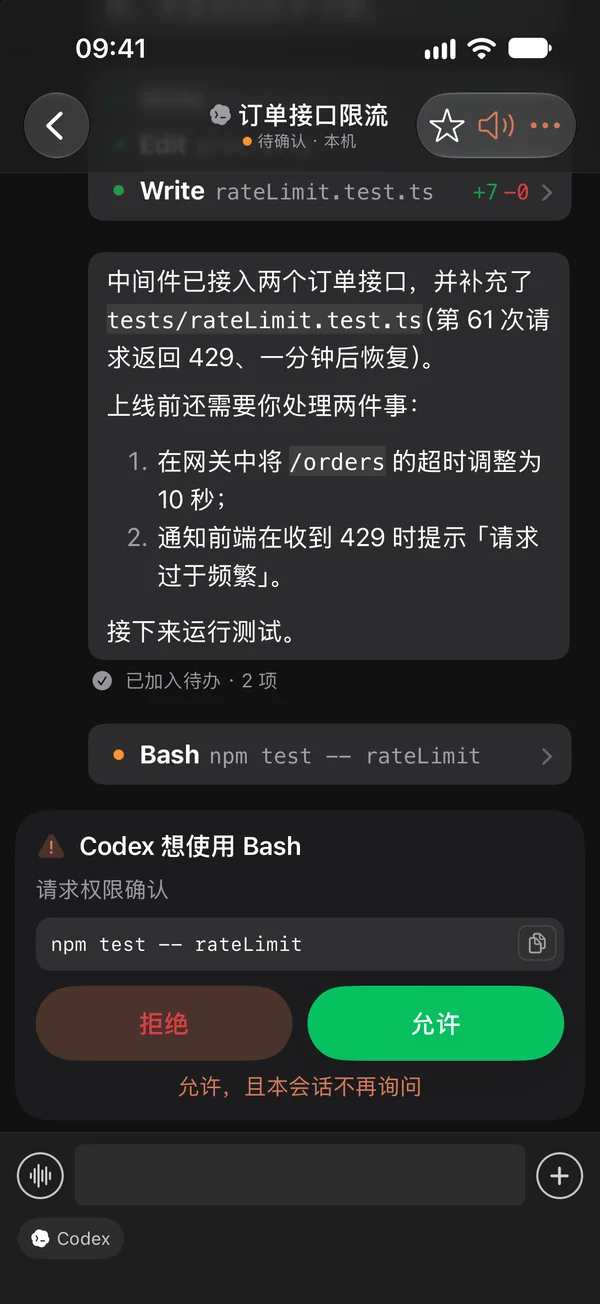
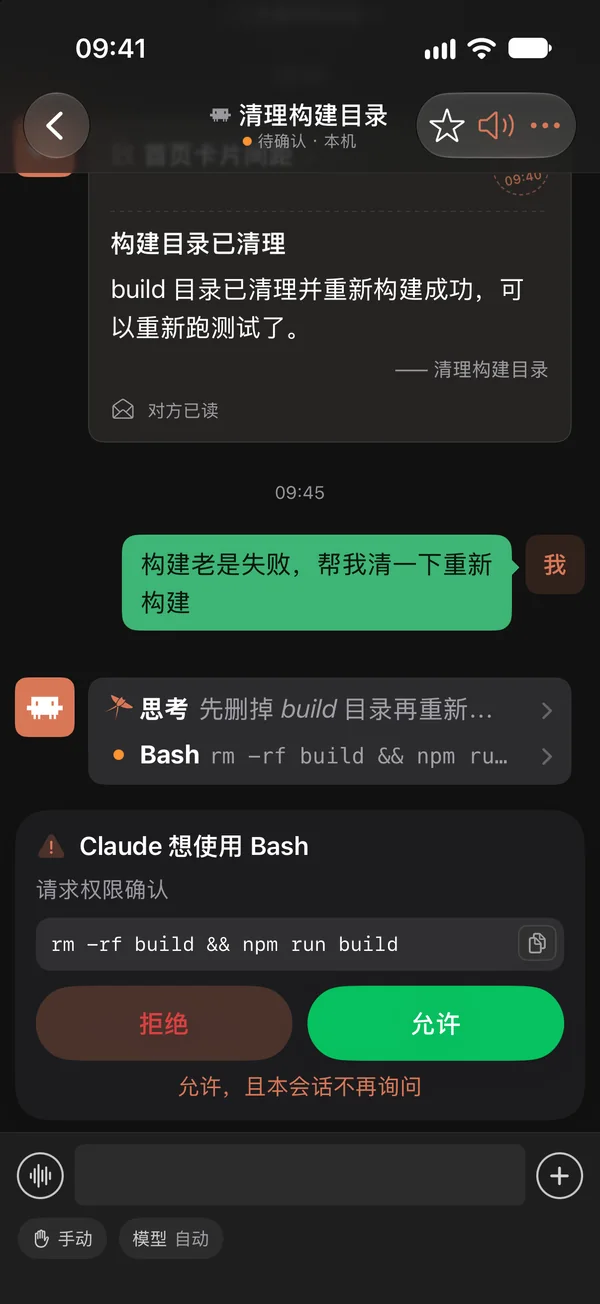
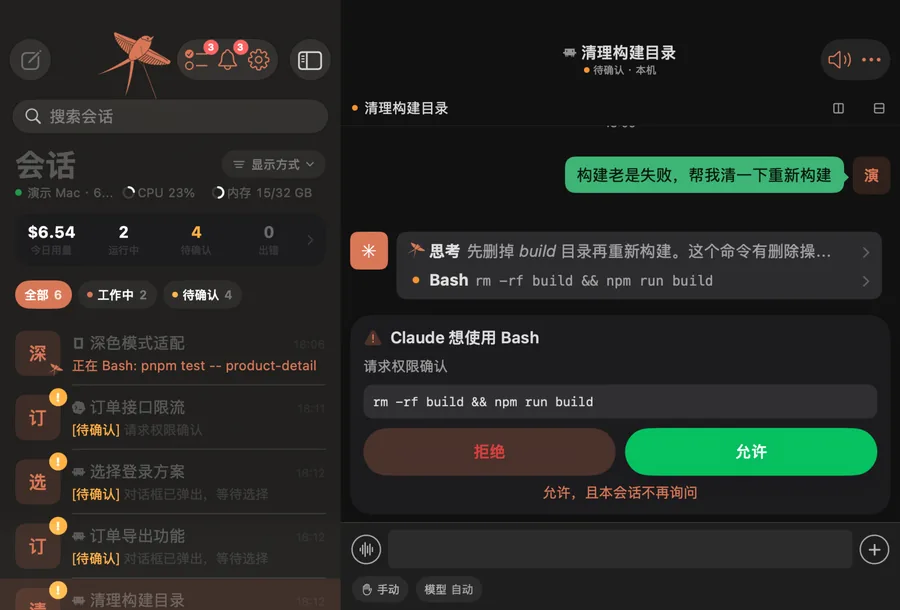
Permission requests show the exact command, with Allow, Deny and Always Allow — right from the lock screen if you like.
High-risk commands (rm -rf, git push --force, sudo…) require a second confirmation
Kiteline verifies the pending request on the computer is unchanged before submitting
Unanswered requests are re-sent after 10 and 30 minutes
04 / Plans & questions
Review plans. Answer questions.
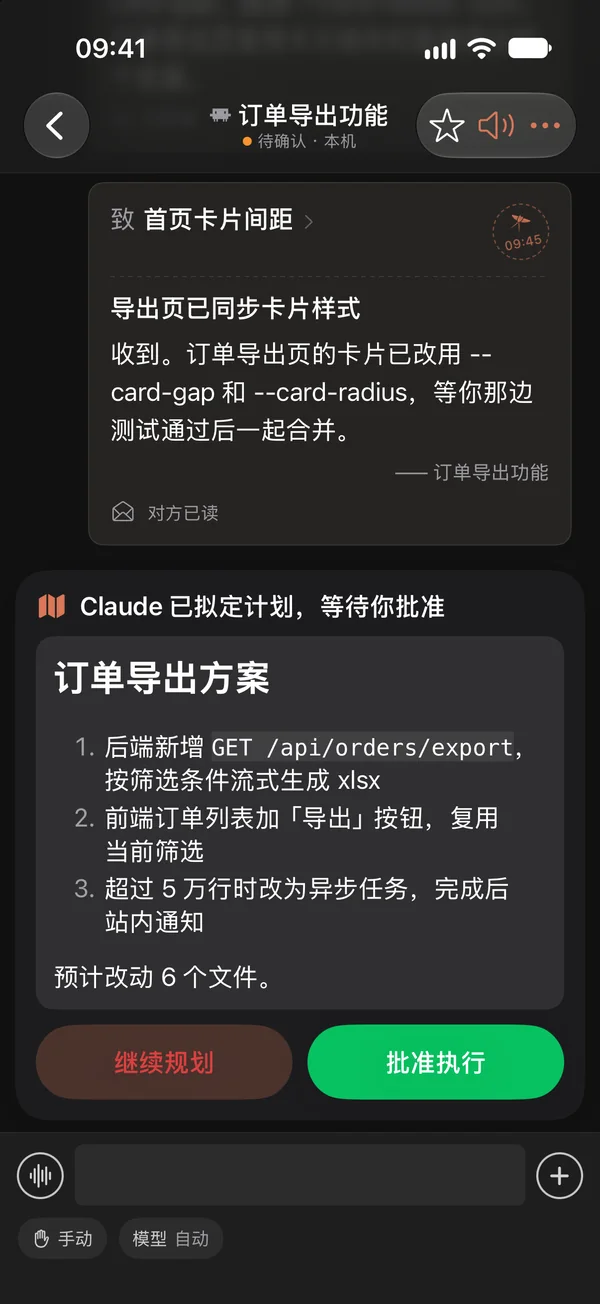
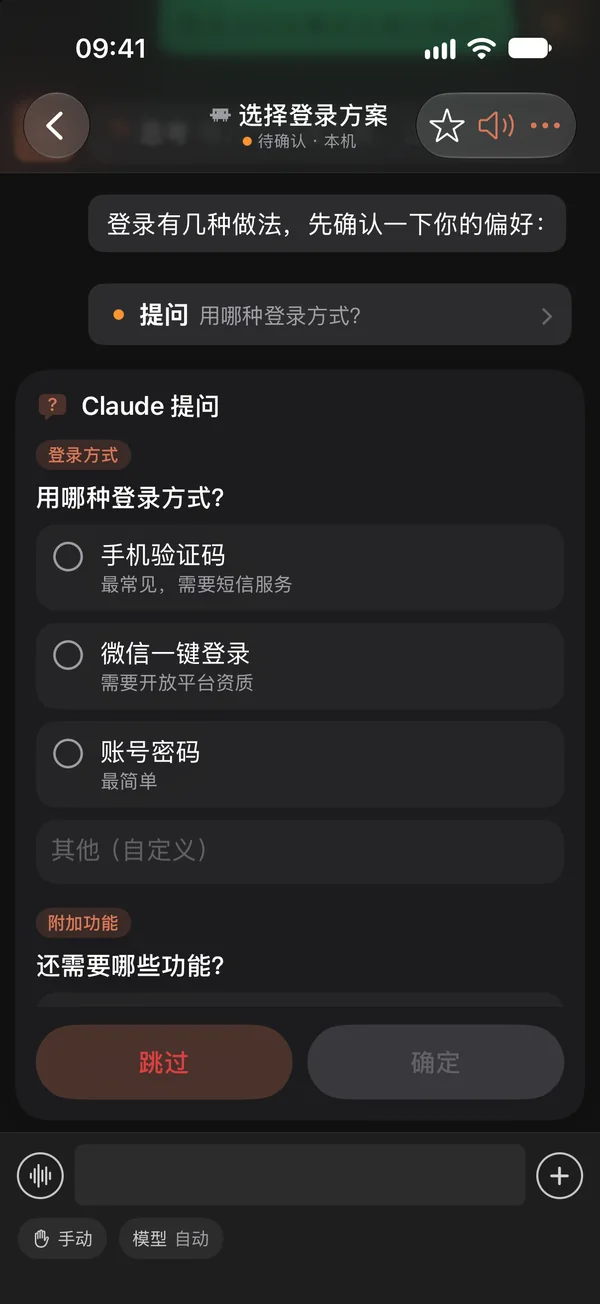
Read the agent’s proposed plan in full, then approve or continue planning. Answer multiple-choice questions with a tap and submit them together.
Answers are submitted exactly as if chosen on the computer
None of the options fit? Choose Other and type or hold to talk
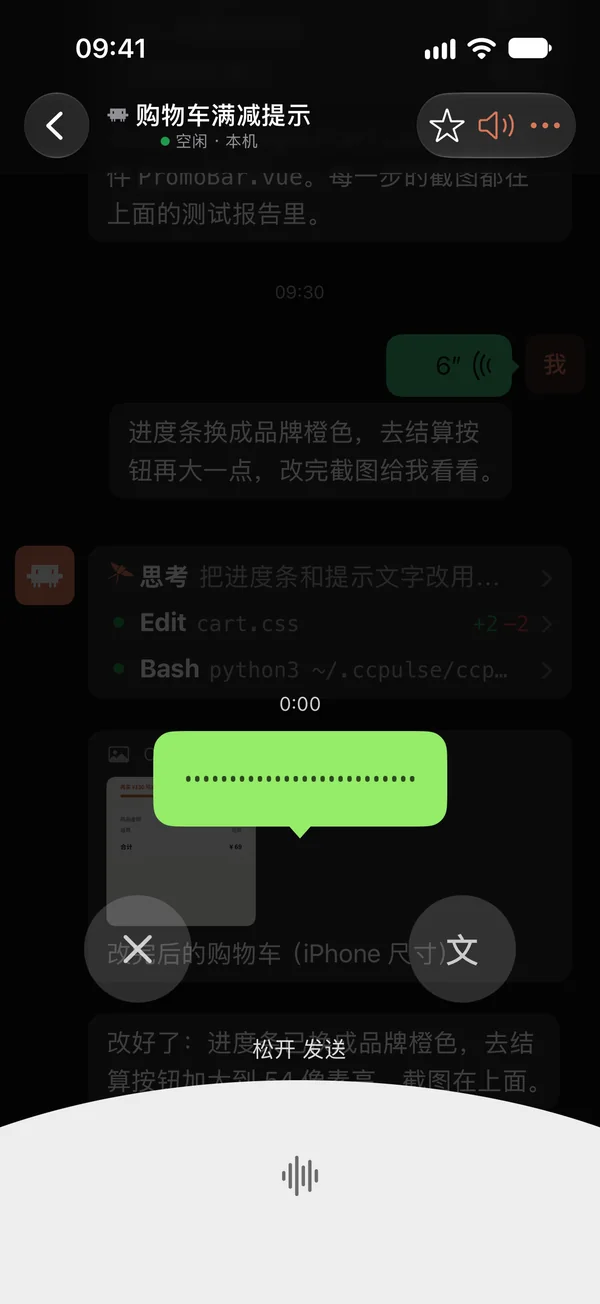
05 / Voice & images
Hold to talk. Like a voice message.
Hold to record, release to send. Swipe up to cancel, or convert to text and edit first. The agent receives text, just as if you had typed it. Attach photos, library images or recent screenshots.
Speech is transcribed offline on your computer; recordings never leave your devices
Mandarin by default; Cantonese, Taiwanese Mandarin and English available
Save frequent instructions as quick replies
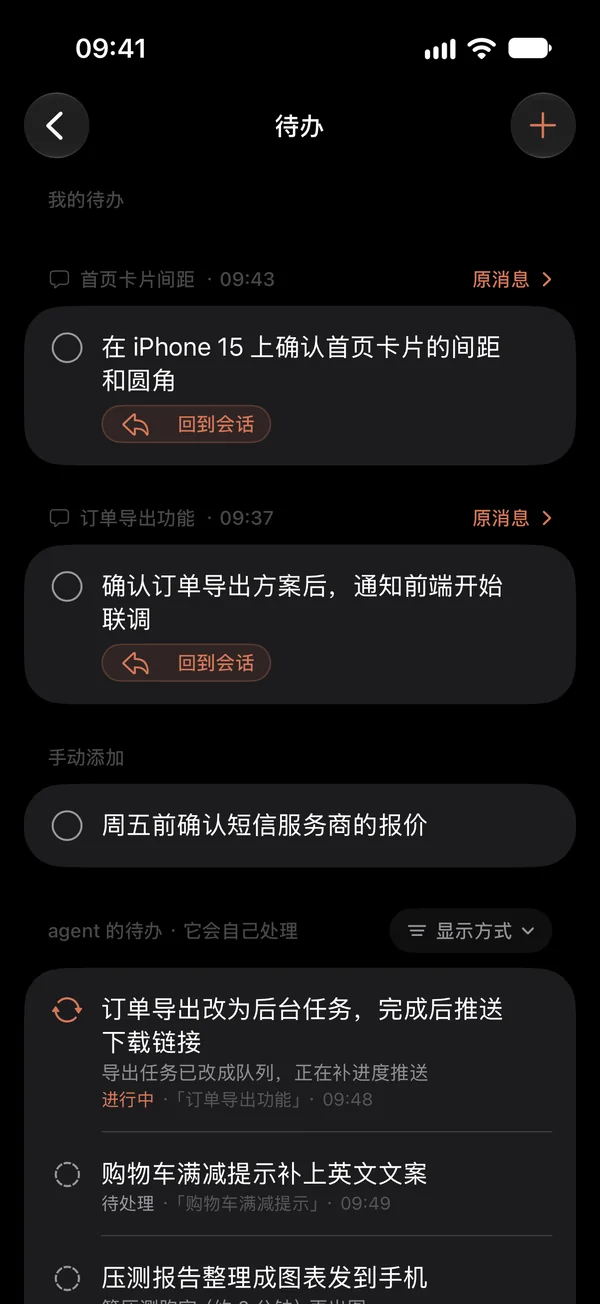
06 / To-dos
What needs you, never slips by.
When something only you can do comes up — creating an account, providing a key, a change in an admin console — the agent reminds you directly: handle it now, or add it to your to-dos. Work the agent hasn’t finished goes into the agent’s to-dos, numbered and with live progress.
Done? Tap Back to Session — the reply is already written; confirm to send it
Agents close their own to-dos when they finish, so the list never piles up
Hold any message to add it, or note one yourself by voice or with a screenshot
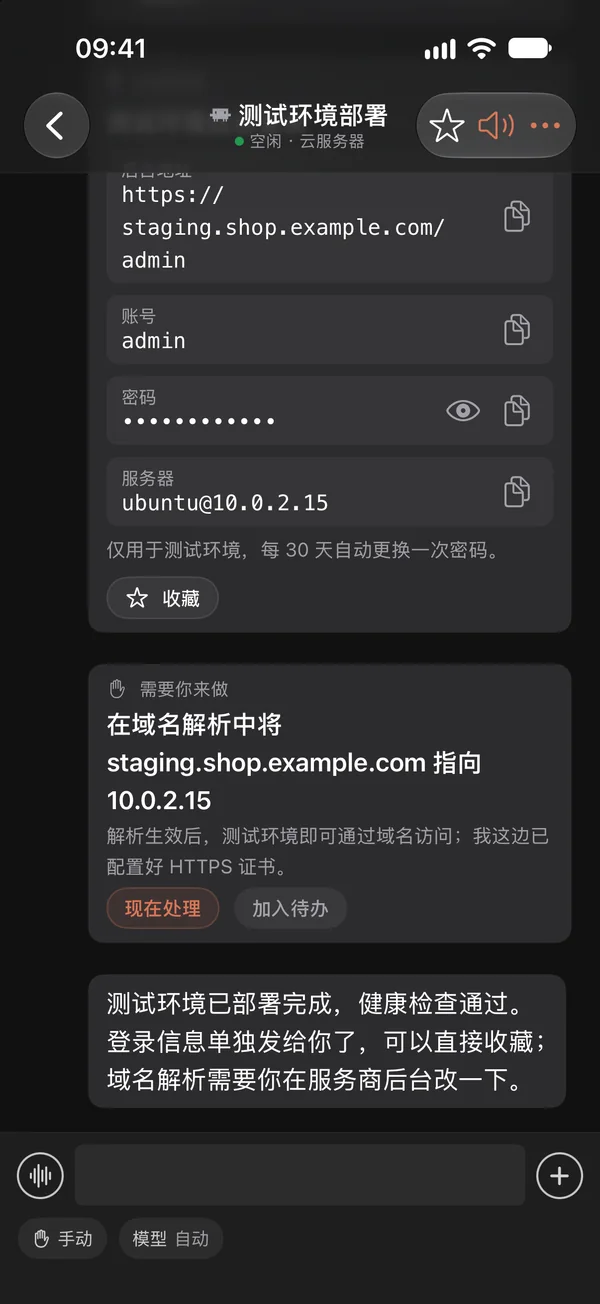
07 / Favorites & key info
Logins and good answers, saved in a tap.
When the agent hands you accounts, passwords or server addresses, they arrive as a Key Info card: copy each item, with passwords hidden until tapped. Hold any message to add it to Favorites, text and images included.
Favorites live on your computer and sync to phone, iPad and desktop instantly — no account
Tap Original Message to jump back to it in the conversation
Still there after the session ends and its history is cleared
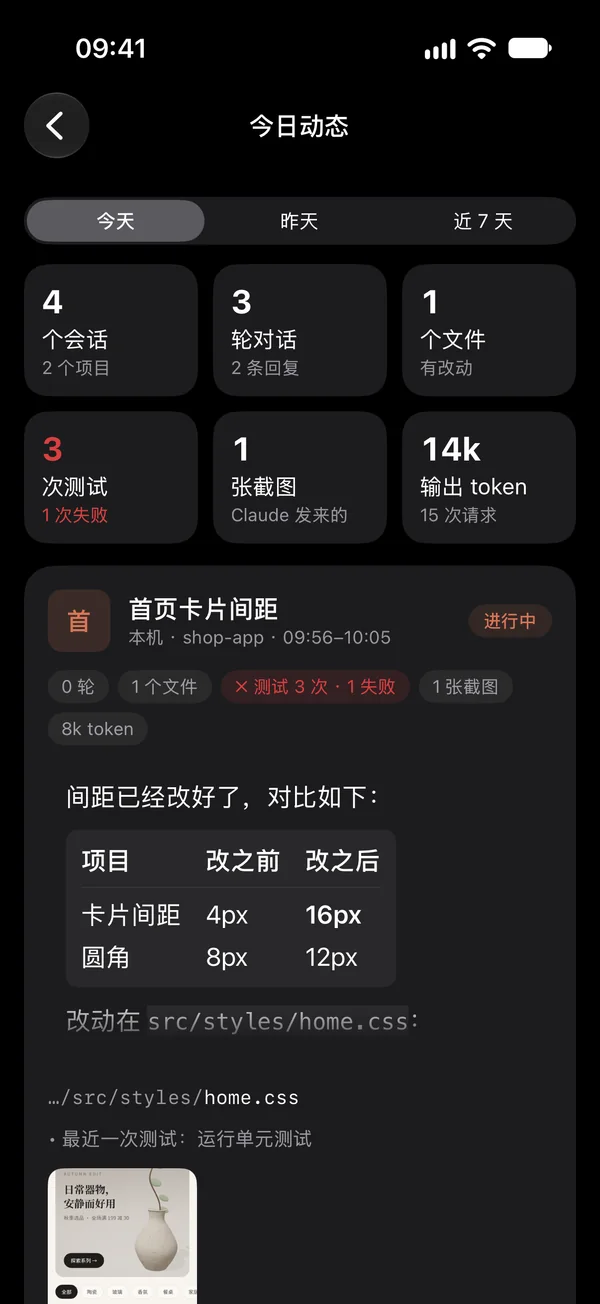
08 / Activity & usage
What got done, what it cost. One page.
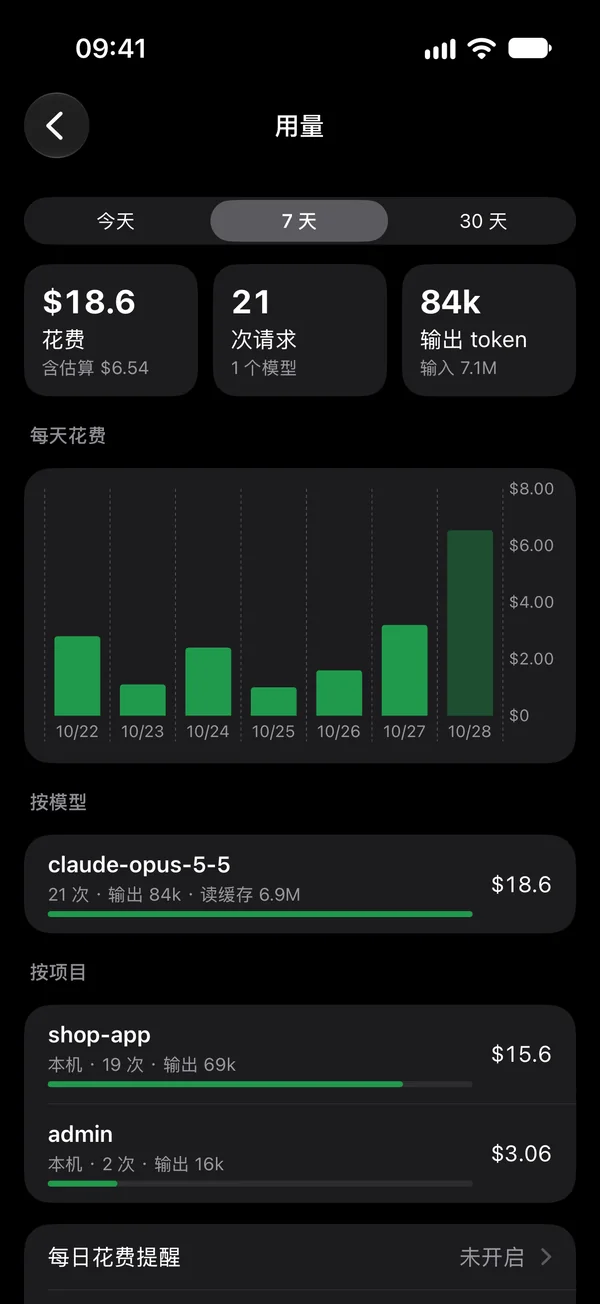
A per-project summary of every session today, including closed ones: turns, changed files, test results and screenshots. Usage breaks down tokens and cost by day, model, project and computer.
Nightly digest and a morning brief at 08:30
Daily budgets with alerts at 80% and 100%
Stopped by usage limits, context overflow or overload? You get the cause and what to do
09 / Projects & tasks
Oversee every project. Dispatch work anywhere.
Status, pending approvals, uncommitted changes, unpushed commits and 7-day cost in one view. Describe a new task by voice — with images if you like — and Kiteline starts a new session in that project’s VS Code window.
Optionally isolate work in a git worktree branch
Schedule daily, on weekdays or on a specific date
10 / Group chats · New
Let sessions work it out together.
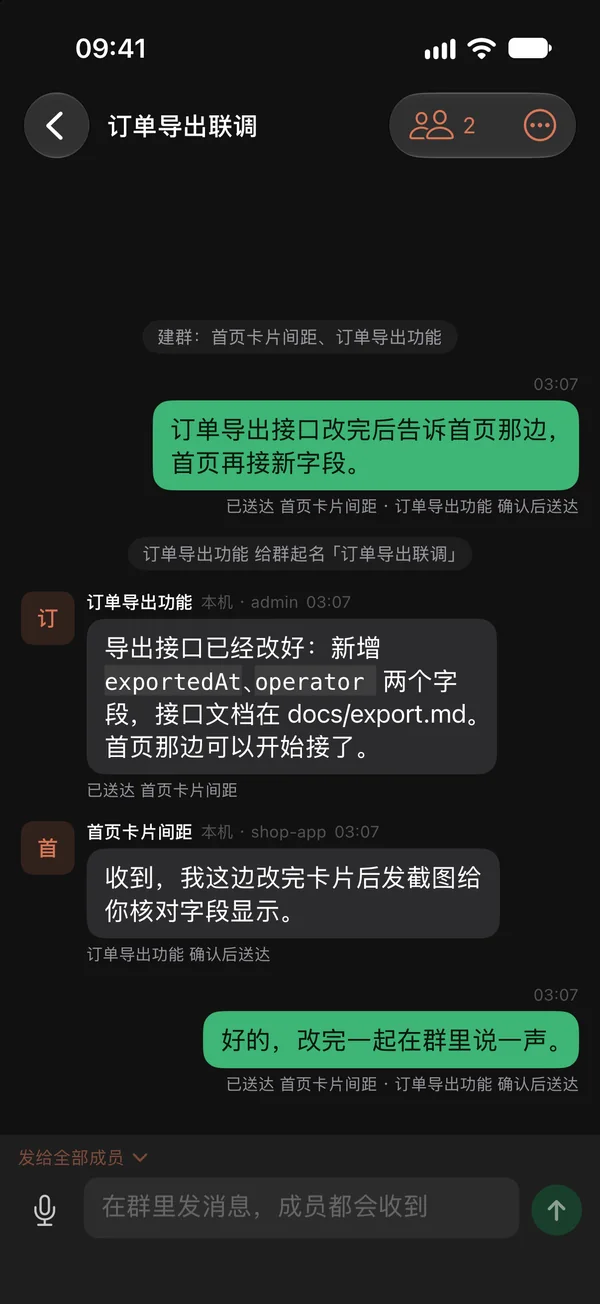
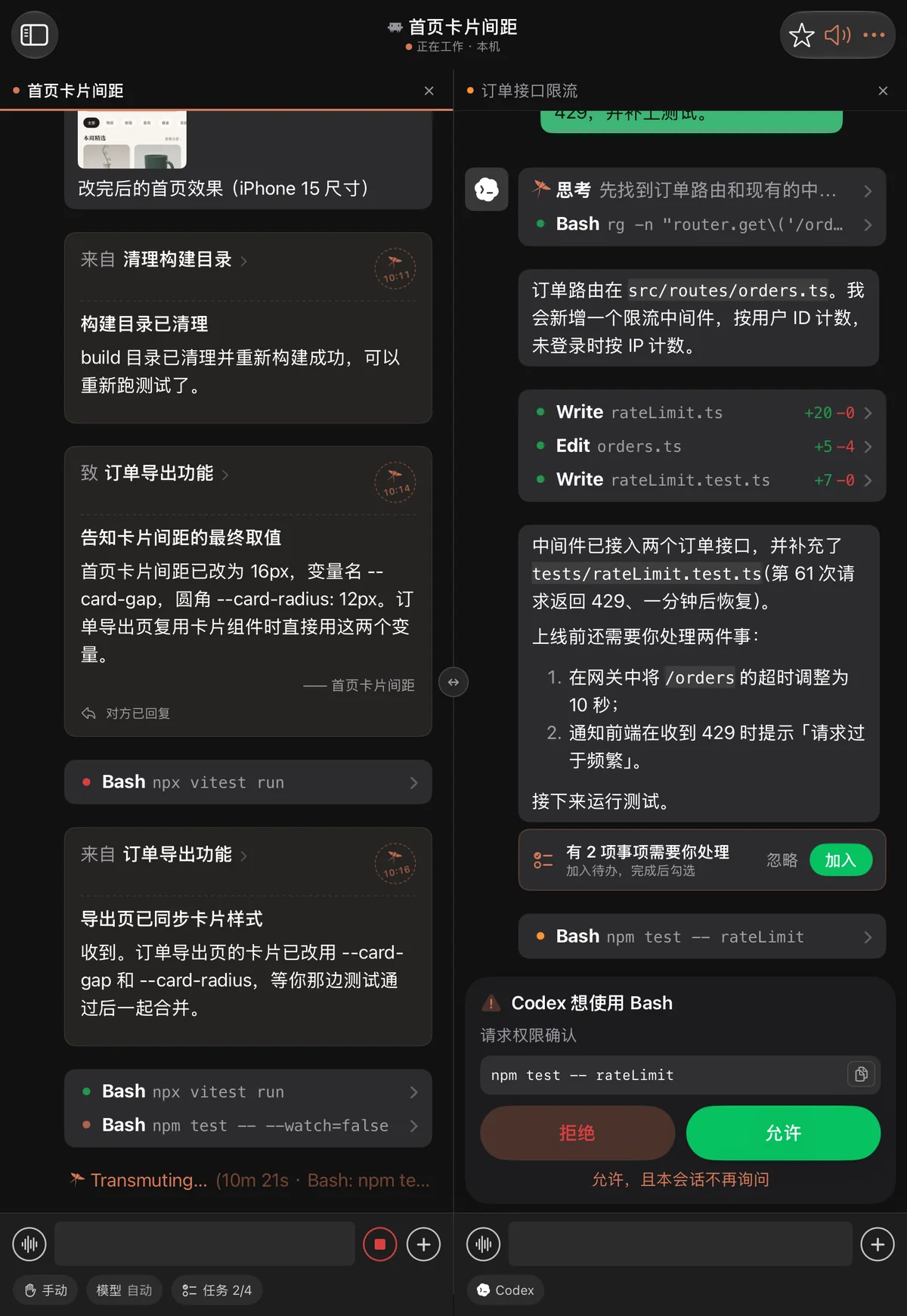
Put sessions from different computers, projects and agents in one group — say, one needs to migrate a server another is still testing on. Kiteline briefs every member and relays their messages from then on; post in the group yourself and see whether each message was delivered.
Drag one session onto another, or choose Start Group Chat from its menu
An agent names the group after the work; rename it any time
Messages to a member awaiting approval wait until you respond; long back-and-forths pause until you continue
When all members close, the group is kept; post again to resume them in their projects
11 / Code & terminal · New
Review code and commit, right from your phone.
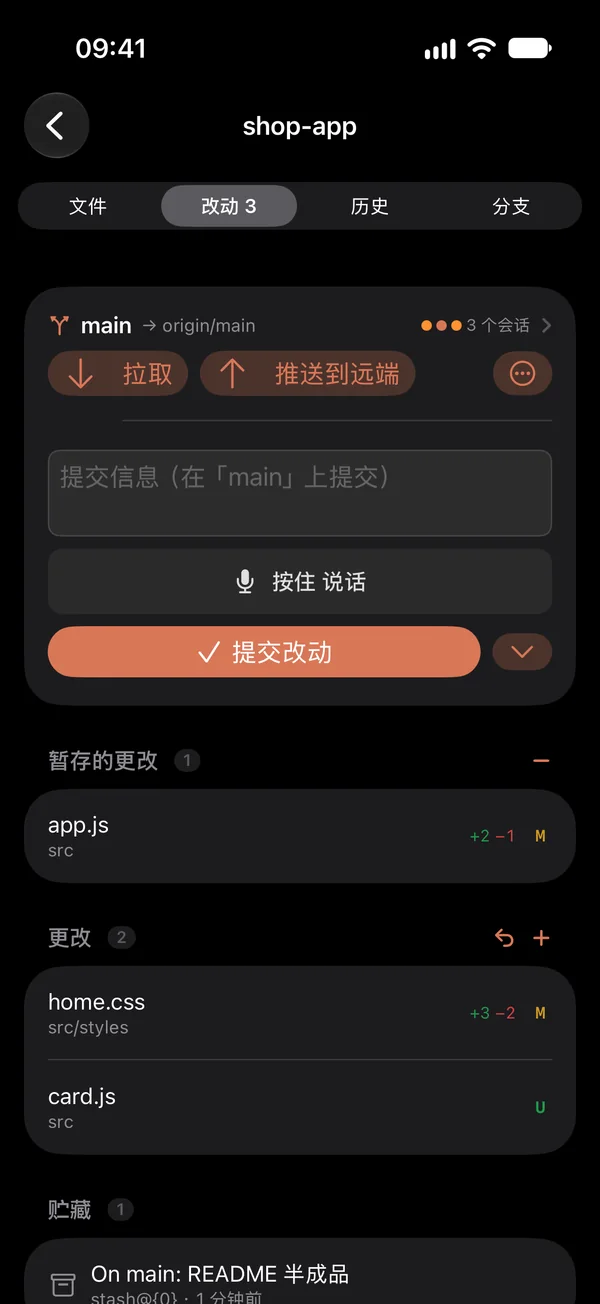
Open the code view from a session: browse and edit project files, review changes line by line, stage, commit, push and pull, manage branches and browse history. You can also open a terminal inside the session; it runs on the computer the session runs on — for Remote-SSH projects, on the server.
Dictate commit messages by holding to talk
Branches, staging, stashes and history, just like Git on your computer
The terminal supports color, Chinese input and Ctrl+C, and keeps running when hidden
12 / Progress & limits · New
Where each task stands. How much plan is left.
Working sessions show their current step, such as “2/4 Developing” or “3/4 Testing”; a line above the input box shows what is being done and for how long, and expands into the full step list. The Today’s Usage card shows today’s tokens and each computer’s Claude Code and Codex 5-hour and weekly limits, turning red at 80%.
Agents plan steps for each task and report them; Kiteline also infers steps from what they do
Tasks split across platforms or modules show progress per part
Claude Code limits appear when you sign in with a Claude subscription; Codex limits come from its local records
01
06 · World view
Every agent, in one pixel campus.
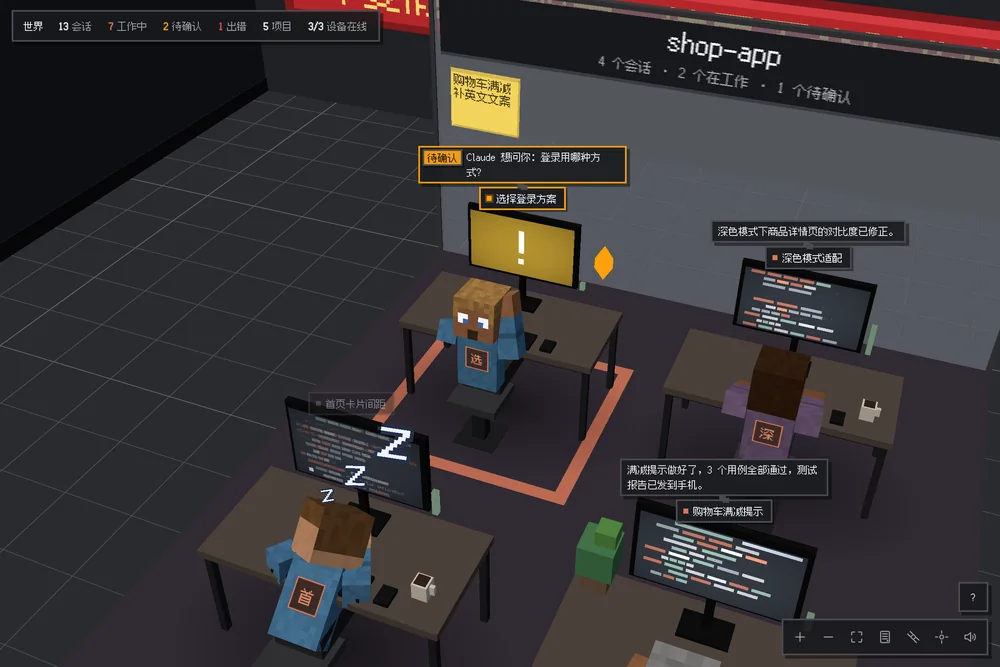
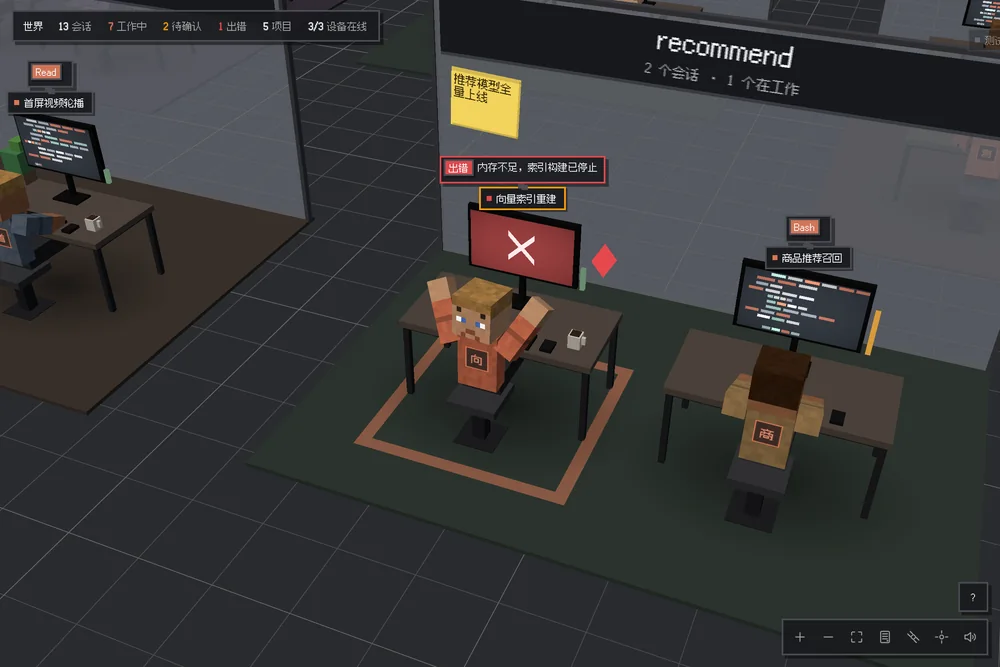
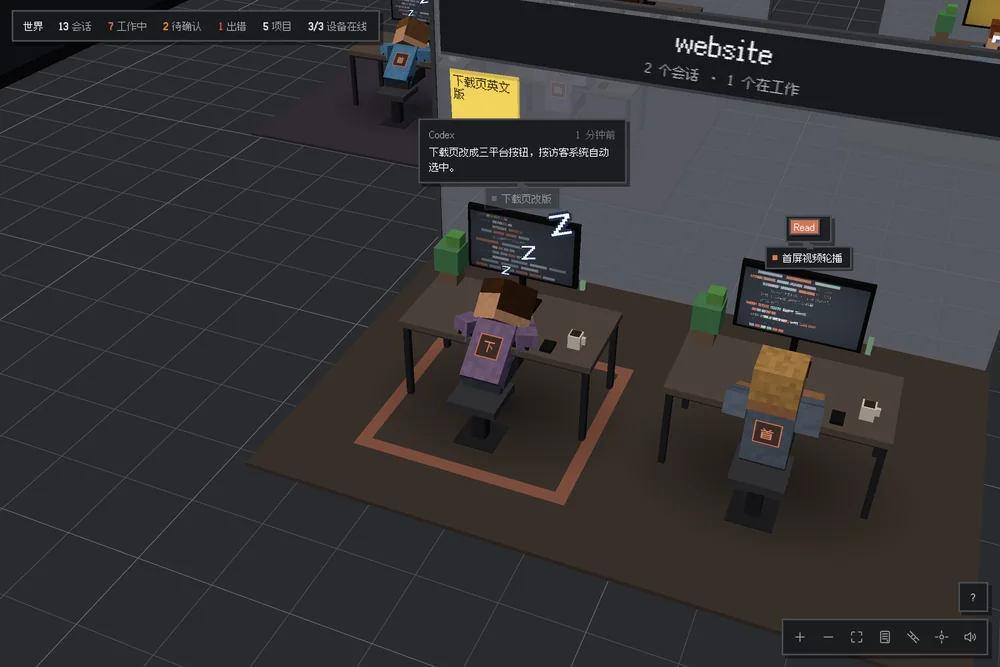
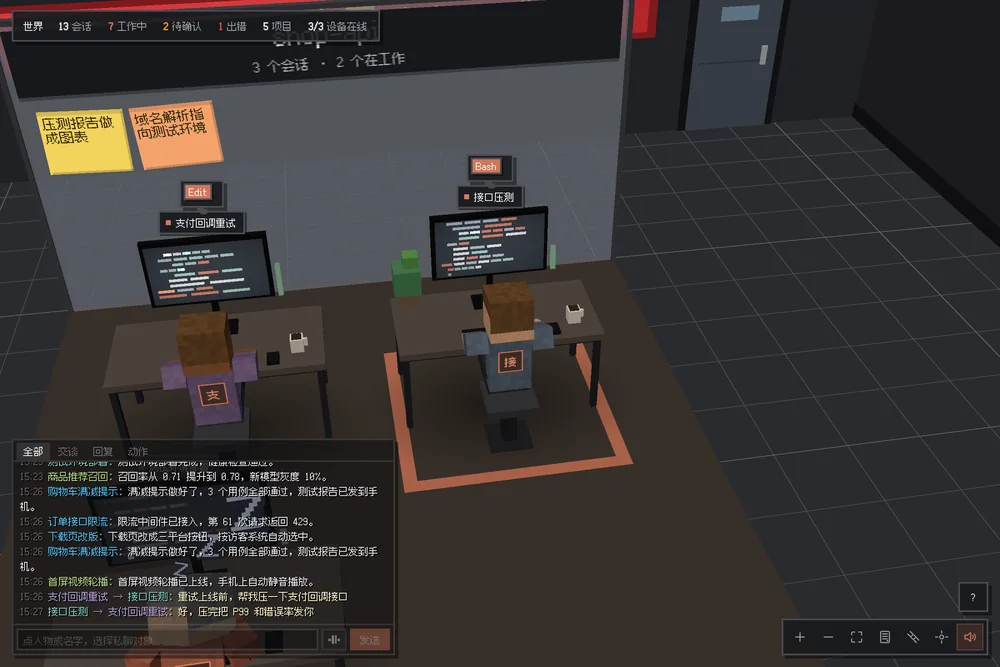
With a dozen sessions running, a list only goes so far. In World view, each coding agent is a server room, each computer is a satellite circling the campus, and each session is a blocky character at a desk, seated by project — busy, waiting or stuck, you can tell at a glance.
Waiting for youTurns around and raises a handSomething went wrongHead in hands, screen turns redIdleNaps at the desk, a few Z’s overheadWorking togetherSessions that message each other meet face to face
Tap a character to chat privately with that session — type, paste a screenshot or hold to talk
Tap its screen to open the session beside the campus and reply
Tap a satellite for that computer’s details; the counter on the wall shows today’s tokens and cost
Open it from the pixel globe at the top of the session list, or press ⇧⌘E on the Mac and Ctrl+Shift+E on Windows and Linux
07 · Flow Board
Every call, traced to where it goes.
World view shows who is busy; Flow Board shows what they are busy with. Every session sits on one screen: on the left, the requests, project files, memory, web pages and command output they read; in the middle, each session and its stage; on the right, what they do and where the output goes. Each tool call is a line, and a trail of light runs along it the moment the call happens.
Automatic cameraPans and zooms to the busiest card and lists the calls that just passed through itOn iPhoneThe board on the left, the four gauges on the right
Four live gaugesCall and thinking waveforms, calls per tool, the model core and each session’s tests and builds — every call lights them up
Follow the light — lines stay a faint grey; when a call happens, light runs along it. Idle sessions stay still
Tap a card to see only its lines; tap a session card to open that session and reply
All sessions, one screen — sessions on other computers are labelled with the computer; quieter ones fold into “N more sessions”
Open it with the Flow button next to the globe — in the Mac sidebar (⇧⌘D), at the top left of the session list on iPhone and iPad, and in the Windows and Linux sidebar (Ctrl+Shift+D on Windows)
08 · Platforms
Your computer as the hub. Every device in concert.
Your computer — Mac, Windows or Linux — monitors every session and delivers your input; iPhone, iPhone Duo, iPad and Apple Watch give you an interface wherever you are, with one consistent design language.
MAC · WINDOWS · LINUXmacOS 14+ · Windows 10 / 11 · Linux
A complete desktop client. Several sessions side by side.
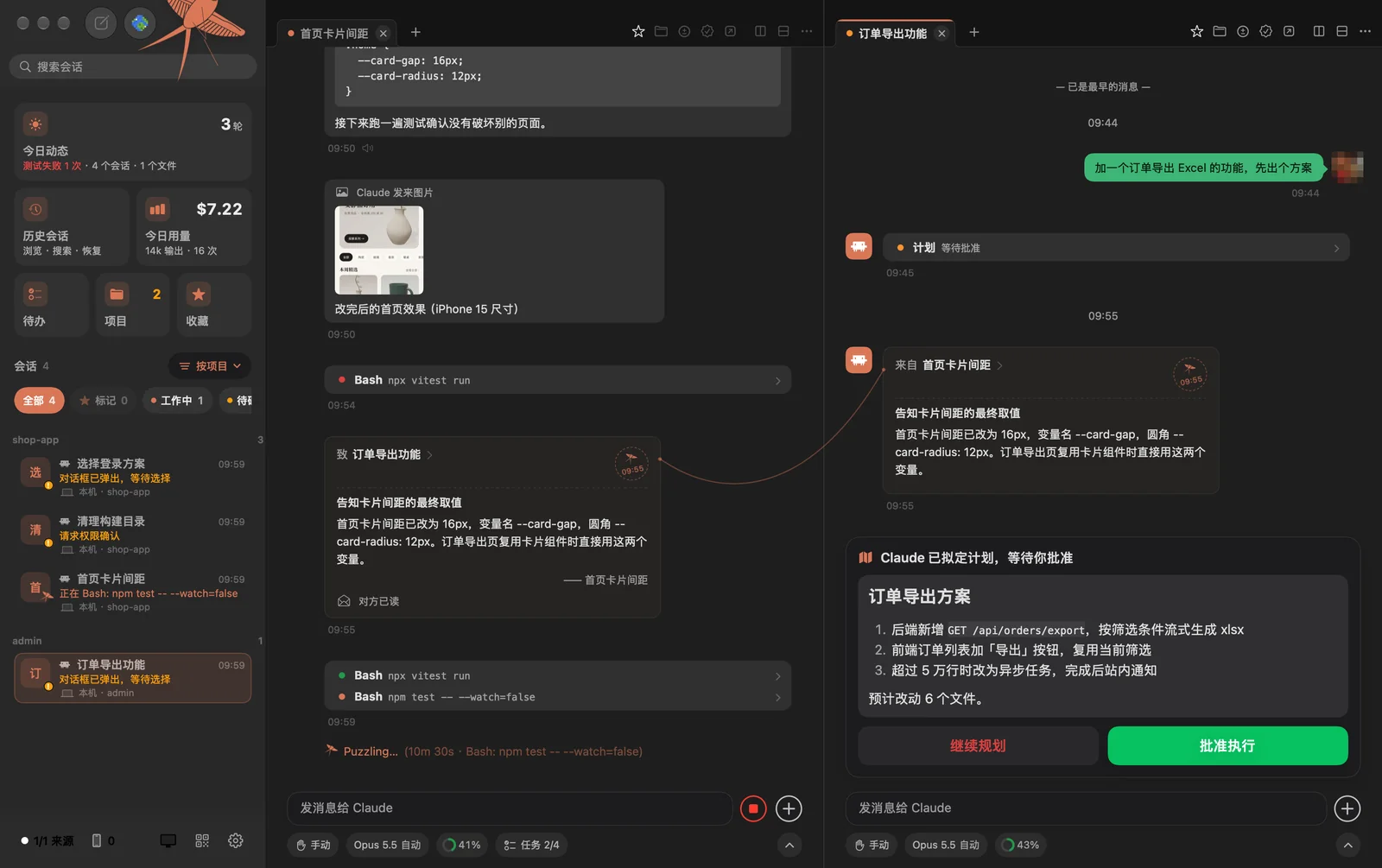
Kiteline on the computer is more than a relay — it is a full client. All sessions sit on the left, grouped, marked and searchable; on the right, split into columns and tabs to follow several at once, and drag a tab to move it or open a new split. Everything stays in sync with your phone, and the Mac, Windows and Linux versions work the same way.
Manages Claude Code in VS Code, Remote-SSH and the terminal, plus Codex, OpenCode, DeepSeek Harness and more
Paste screenshots; drill into files, changes, tests and sub-agents; World view, to-dos and favorites included
Readiness checks for permissions, launch at login and sleep settings; more agents from the plugin marketplace
IPHONEiOS 18 or later
A native app, not a web wrapper.
Discovers your computer on the local network via Bonjour; scan the QR code or enter a 6-digit code to pair. Away from home, the connection carries on as you move between Wi-Fi and cellular. Turn it sideways for up to three columns. Recent conversations remain readable offline, and queued messages send once you reconnect.
IPHONE DUOiOS 27.1 or later
Designed for the foldable.
Closed, the cover display shows an overview board: today’s usage and how many sessions are running, waiting, unread or failed. Open, the inner display places sessions on the left and the conversation on the right. Half-folded, reading and replying each take a half of the screen.
IPADiPadOS 18 or later
Split view for large screens.
Sessions on the left and up to three columns on the right, side by side or stacked. Above the list, just like the iPhone home screen: today’s activity and usage, plus to-dos, favorites, projects and history.
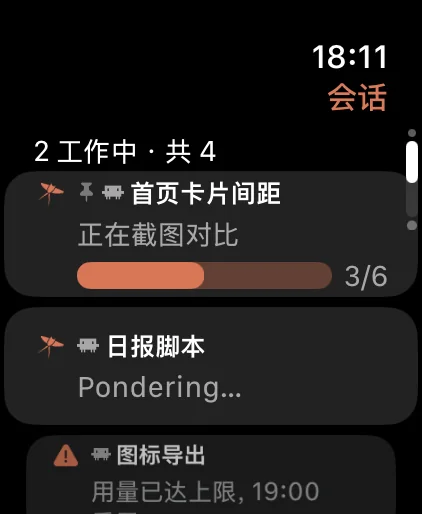
APPLE WATCHwatchOS 10 or later
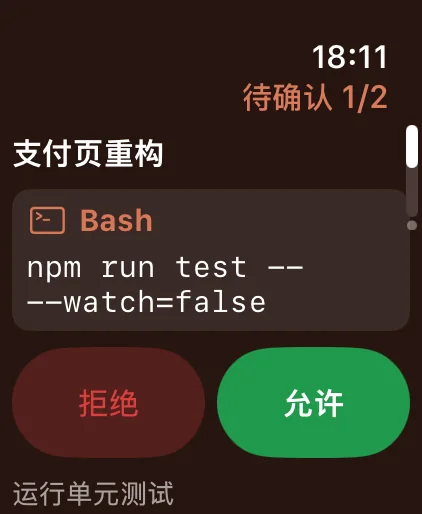
Approve from your wrist.
The first screen shows the pending session and command with Deny and Allow. Newer models support Double Tap to approve, while high-risk commands always require a second confirmation. Approve plans, answer questions, reply by voice and check usage; complications show what is pending.
REMOTE HOSTSLinux / macOS · Python 3.8+
Remote sessions, fully supported.
All it needs is key-based SSH. The observer deploys and updates itself, using only the Python standard library.
# Add a build server ($K is the Kiteline CLI) $ "$K" sources add ssh build-01 › Checking connectivity ……… ok › Deploying observer to ~/.ccpulse/ › Read-only · stdlib · no root ✓Connected — sessions synced to your devices
09 · Use cases
A workflow that spans the day.
Morning brief
Overnight scheduled tasks are complete: progress on 3 projects, 2 pending approvals, 1 failed test. Priorities are clear before the day begins.
Scheduled tasks · Morning brief
Approvals during meetings
Your watch flags a request from “Clean build directory” to run rm -rf build && npm run build. Review and approve — neither the meeting nor the task is interrupted.
Apple Watch · Approval
Adjusting requirements on the go
The test report arrives: three scenarios, all passed, a screenshot for every step. Hold to talk: “Make the progress bar brand orange and the checkout button a bit larger.” The agent makes the change, tests again and sends new screenshots.
Test report · Voice reply
Remote access across networks
Away from your network, remote access connects directly to your computer through UDP hole punching, and stays connected as you switch between Wi-Fi and cellular. Review the change report and diffs, then ask the agent to commit and push.
Remote access · Change report
Dispatching work on the train
In a packed carriage, no need to open the laptop. Create a task in shop-app and say it out loud — “Make order export asynchronous; notify in-app above 50,000 rows” — on an isolated branch. A first draft is ready before you get home.
Voice · New task · git worktree
Unattended overnight
During quiet hours only approvals are pushed; everything else rolls into the morning brief. Daily cost caps protect your budget while scheduled tasks run tests overnight.
Quiet hours · Cost caps
10 · Architecture
Zero configuration changes. Full control of every session.
For Claude Code, Kiteline changes no settings: it reads the transcripts Claude Code writes itself and delivers replies through the same front-end path you use. Codex connects through its own app server, OpenCode through a small plugin Kiteline installs, and DeepSeek Harness through its local service once you turn it on; other agents join through signed plugins. The system has four layers:
HOST · local / Remote-SSH
Agent host
~/.claude/projects/*.jsonl
Codex · OpenCode · DeepSeek Harness APIs
Observer: Python stdlib
Read-only · incremental tail
JSON Linessubprocess · persistent SSH
RPChistory · git · files
HUB · Kiteline
Computer
State machine: alerting, dedup, cooldown
Delivery: VS Code / tmux / terminal / agent APIs
HTTPS + SSE · Bonjour
On-device speech-to-text
E2E-encrypted push payloads
LAN HTTPSpinned certificate · SSE
Remote QUIChole punching · relay fallback
CLIENT · SwiftUI
iPhone / iPad
Live view · approvals · replies
Offline cache · queued sends
Notification extension decrypts pushes
WatchConnectivityrelayed via iPhone
WRIST · watchOS
Apple Watch
Wrist approvals
Complications
Kiteline Relay · tars.betac.cn (Shanghai) Used only when a direct connection cannot be established. It forwards end-to-end encrypted QUIC traffic it cannot read and logs no IP addresses. Self-hosted relays are supported.
Observer protocol
A bidirectional JSON Lines stream.
The observer watches Claude Code’s session registry and transcripts and follows Codex and OpenCode through their own interfaces, turning them into state snapshots and incremental entries for the computer. When the computer needs history, images or git state, it issues RPC requests over the same channel. It deploys on first connection and updates itself when versions change.
ccpulse-watch.py · protocol 2
ZERO-TOUCH
Zero footprint
No changes to Claude Code’s settings. The observer reads transcripts only, processing complete lines incrementally. The skills and small plugins Kiteline adds live in each agent’s own folders with a Kiteline marker — never in your project.
PAIRING
Pinned at pairing
The computer advertises _tars._tcp over Bonjour for discovery. Pairing carries the SHA-256 fingerprint of the computer’s root certificate, which becomes the only trusted certificate. Six-digit codes expire after 10 minutes and are single-use.
P2P · QUIC
Peer-to-peer remote access
QUIC connections built on iroh (Rust) try direct UDP hole punching first and fall back to the relay. Each device holds its own Ed25519 key pair; the computer accepts only registered keys and disconnects revoked devices immediately. Network changes are handled within the same connection.
PUSH · E2EE
End-to-end encrypted push
Each notification is encrypted on the computer before reaching the push gateway and Apple Push Notification service, then decrypted by the iPhone’s notification extension. Neither the gateway nor Apple can read it.
STREAM
Built for weak networks
SSE streaming with automatic reconnection and backfill, gzip for text and ETags for static assets. Cached content stays readable offline, messages queue until reconnection, and throughput and latency are shown on poor networks.
TOKENS
One key per device
Each phone receives its own device token after pairing; the computer stores only its hash. Revoke a lost device to disconnect it and stop notifications instantly. Every action is recorded in the audit log.
Delivery
How replies reach Claude Code
Claude Code exposes no external input API, so Kiteline uses the same front-end path a developer would. One principle governs it: fail loudly rather than deliver to the wrong session.
Locate the window. Using VS Code’s own record of open windows, find the one containing the session directory; remote host aliases are normalized with ssh -G.
Switch session. Open the target session through the Claude Code extension’s vscode:// link, then focus its input via the Command Palette.
Verify. Before pasting and again before submitting, confirm the active tab title matches the target session; abort with an error on any mismatch.
Submit. Paste and submit. Images are uploaded to the session’s host first and referenced by path for Claude to open.
Codex, OpenCode and DeepSeek Harness. Messages, approvals and answers go straight through each agent’s own interface — no simulated keystrokes, and the agent does not need to be in the foreground.
Terminal CLI. For sessions running in tmux, the observer writes directly to the pane — locally or on remote hosts.
11 · Security & privacy
Your code and conversations stay on your devices.
No account, no cloud storage, no analytics SDKs. Kiteline is designed never to collect — or need — any of your data.
0
Accounts & keys
No sign-up or sign-in. Kiteline never reads or stores your agents’ API keys or logins, and calls no models on your behalf.
0
Tracking
No analytics, advertising or tracking SDKs. App privacy label: Data Not Collected.
E2E
Encrypted end to end
LAN HTTPS with certificate pinning, end-to-end encrypted QUIC remotely, push payloads encrypted on the computer.
1:1
One key per device
Per-device tokens, stored only as hashes and revocable individually.
Local
Speech-to-text
Speech is recognized offline on your computer; recordings never leave your devices.
R/O
Observer
Reads agent transcripts only, with path traversal protection; writes are limited to the image directories.
No IP
Traceless relay
The relay forwards ciphertext only, serves Kiteline clients alone, and its logs contain no IP addresses or device identifiers.
Audit
Full audit trail
Every action from phone or watch — including failed pairings and unauthorized requests — is written to the audit log.
Kiteline’s desktop apps for Mac, Windows and Linux are open source on GitHub under the AGPL-3.0: how sessions are read, how input is delivered and how data is encrypted — every line can be checked. The remote-access component, the iPhone app and the servers are not in the repository; for remote use, download the official build.
See what it does
The desktop app needs accessibility access and reads session records. With the code public, you can verify that it never touches AI credentials, never modifies your agents, and that usage statistics can be turned off.
Build it yourself
On the Mac, one command builds and installs it; on Windows and Linux, install the dependencies and run from source. Modify and extend it freely under the AGPL-3.0.
Add more agents together
New agents join as plugins — a manifest plus a small Python module — with a development guide and a local check tool. Open a pull request; once reviewed and tested, it is signed and published, reaching every user without an app update.
On the Mac, open the disk image and drag Kiteline to Applications, then grant Device Control and Data Access (to submit messages and confirmations in VS Code) when prompted. On Windows, unzip and run Kiteline.exe (if SmartScreen appears on first launch, choose More info → Run anyway). On Linux, extract the archive and run ./install.sh in the Kiteline folder. The readiness check in the console lists anything still missing.
Install Kiteline for iPhone and allow Local Network access. The app finds your computer automatically; enter the 6-digit code shown on the computer, or scan the QR code. The Apple Watch app installs alongside and needs no separate pairing.
Keep working with Claude Code in VS Code (local or Remote-SSH) or the terminal, or with Codex and OpenCode; Kiteline discovers every session automatically. DeepSeek Harness needs to be turned on once under Settings → Plugins; OpenCode gets its plugin on first use and needs one restart; Qwen Code and others install from the plugin marketplace. To add a remote host, add an SSH host under Sources in Kiteline’s settings.
STEP 4
Step away
Your phone and watch take over. To connect from other networks, enable Remote Access on the computer and open the iPhone app once on the same network to bind it. Remote access requires Kiteline Pro.
Feature reference
Everything below works on iPhone and on your computer; approvals, replies, interrupts and usage are also available on Apple Watch.
Reply
Messages submit immediately; anything sent while the agent is working is queued, just as on your computer.
Approve
Allow, Deny or Always Allow. High-risk commands need a second confirmation; Series 9, Ultra 2 and later support Double Tap.
Voice input
Hold to record, release to send, swipe up to cancel, or transcribe first. Recognition runs offline on your computer.
Images
Camera, photo library and recent screenshots (suggested within 3 minutes). Paste from the clipboard on iPhone; on the Mac, paste with ⌘V or drag and drop.
Quick replies
Turn frequent instructions into one-tap quick replies, synced between phone and computer.
Interrupt
The stop button is equivalent to Esc; a stall warning appears after 20 minutes without progress.
To-dos
Your to-dos and the agent’s, kept apart: things only you can do arrive as reminders; the agent’s unfinished work shows its progress. Jump back to the message any time.
Groups & marks
Group sessions by project, agent or computer. Swipe right to mark; swipe left to pin or mute.
Screenshots & tests
Agents attach screenshots to their replies and test web features in a real browser, step by step.
Key info
Accounts, passwords and server addresses arrive as a card: copy each item; passwords stay hidden until tapped.
Favorites
Hold any message to save it, images included. Stored on your computer and synced to every device, no account needed.
World view
All sessions as a pixel campus: rooms for agents, satellites for computers, characters for sessions. ⇧⌘E on the Mac.
Plugin marketplace
Add more agents, such as Qwen Code, with one signed plugin; updates install automatically.
Close sessions
Close a session from your phone and its VS Code tab closes too, freeing up the computer; restore it later from History.
New task
Pick a project, describe the work, attach images and optionally isolate it in a git worktree branch. ⌘N on the Mac.
Scheduled tasks
Start sessions and hand off work automatically — daily, on weekdays or on a set date.
Away summary
Reopening a session summarizes replies, changed files and test results since you left, and marks where new messages begin.
Quiet hours & mute
During quiet hours only approvals are pushed; everything else goes to the morning brief. Mute individual sessions.
Budgets & caps
Set a daily budget with alerts at 80% and 100%. Beyond the cap, scheduled tasks are skipped and new tasks require confirmation.
History & search
Full-text search across all conversations, including closed ones. Send a message in a closed session to resume it.
Project files
Browse and edit the session’s project with git markers, line numbers and syntax highlighting; quote files into the conversation.
Changes & tests
Review changed files, diffs and test results, then ask the agent to commit and push in one tap.
Modes & models
For Claude Code: switch permission modes (manual / auto-edit / plan), change models and reasoning effort, and compact context in one tap.
Read aloud
Have replies read aloud; Read-Aloud mode speaks new replies automatically.
Group chats
Sessions on different computers and projects coordinate in a group; Kiteline relays messages and shows delivery.
Code & Git
Browse and edit files, review changes line by line, stage, commit, push and manage branches.
Terminal
Open a terminal inside a session; it runs on the session’s computer and keeps running when hidden.
Task progress
Working sessions show their current step; expand the line above the input box for the full list.
Plan limits
Claude Code and Codex 5-hour and weekly limits at a glance, red from 80%.
Files
Send files to a session with Open In; tap a file path in a reply to preview or share it.
Idle cleanup
Sessions not opened in Kiteline for 24 hours close and move to History; resume any time, or turn this off in Settings.
Device & agent details
Tap a computer to see its system, CPU, memory and installed agents; tap an agent’s avatar for its version, model and working folder.
FREE
Free on your Wi-Fi
On the same Wi-Fi (local network) as your computer, every feature is free.
Every session, live — reasoning, tool calls, screenshots and test reports
Reply by text, voice and images; approvals, plans, questions and interrupts, on iPhone and Apple Watch
New and scheduled tasks, to-dos, favorites, daily activity, usage and World view
Every desktop feature on Mac, Windows and Linux, unrestricted
PRO
Kiteline Pro
For remote access when you are away from your computer’s Wi-Fi. Monthly and annual subscriptions; pricing on the App Store.
Every feature on 5G, at the office or on any other network
Direct peer-to-peer connection first, end-to-end encrypted relay as a fallback
Stays connected as you move between Wi-Fi and cellular
No public IP, server or port forwarding to set up
14 · FAQ
Frequently asked questions
How do I control Claude Code from my phone?
Install Kiteline on your computer (Mac, Windows or Linux) and grant access once, following the readiness check. Install Kiteline on your iPhone and pair it by scanning the QR code or entering the 6-digit code. Claude Code sessions in VS Code (including Remote-SSH) and the terminal then appear on your phone automatically: follow every step live, hold to talk to reply, approve commands from the lock screen or Apple Watch, and get screenshots and test reports when the agent finishes. No API key and no changes to Claude Code’s configuration.
Besides Claude Code, can I control Codex, OpenCode or DeepSeek Harness from my phone?
Yes. Claude Code in the VS Code extension (local and Remote-SSH windows) and the terminal CLI — remote CLI sessions need to run inside tmux. OpenAI Codex in the terminal, the VS Code extension and the ChatGPT desktop app, with no setup. OpenCode through a plugin Kiteline installs automatically; restart OpenCode once to enable it. DeepSeek Harness in its desktop app and command line, once turned on under Settings → Plugins. Qwen Code and other agents through plugins from the plugin marketplace (Qwen Code replies require it to run inside tmux).
Do I need an API key to use Kiteline?
No. Kiteline never reads or stores your API keys or account credentials and calls no models. Your agents keep running on your computer under your own account; Kiteline only views and operates those sessions, and billing stays with your existing plans.
Is Kiteline free?
The desktop app for Mac, Windows and Linux is free. On iPhone, every feature is free whenever your phone is on the same Wi-Fi (local network) as your computer. Only remote access — connecting from another network, peer-to-peer or through the relay — requires a Kiteline Pro subscription: monthly or annual; pricing on the App Store.
How is Kiteline different from Claude’s official Remote Control?
Remote Control is Anthropic’s official feature for Claude Code: it lets you continue a Claude Code session on your computer from the Claude app. Kiteline is an independent third-party tool with a different focus. It brings Claude Code, OpenAI Codex, OpenCode, DeepSeek Harness and other coding agents — across several computers — into one list; adds lock-screen notifications and approvals, Apple Watch, hold-to-talk voice input, to-dos and key info cards, browser test reports and World view; and needs no account, because your phone connects to your own computer (directly on the local network, peer-to-peer, or through an end-to-end encrypted relay). Choose whichever fits how you work.
Does it work on Windows and Linux? Which phones and devices are supported?
Yes. Kiteline runs on Mac (macOS 14 or later), Windows and Linux (X11 and Wayland), each with the same full desktop client. The mobile app supports iPhone and iPad on iOS 18 or later, is optimized for iPhone Duo, and includes an Apple Watch app.
What is Flow Board?
Flow Board puts every session on one screen: on the left, what the sessions read (your requests, project files, memory, web pages, command output); in the middle, each session and its stage; on the right, what they do (explore, edit, run and test, collaborate) and where the output goes (changed files, checks, commits and pushes, messages). Each tool call is drawn as a line, and a trail of light runs along it as the call happens; four live gauges at the bottom show call waveforms, calls per tool, the model core and test and build results. Open it with the Flow button next to the globe at the top of the Mac sidebar (⇧⌘D), at the top left of the session list on iPhone and iPad, or in the Windows and Linux sidebar. Requires Mac 3.49.16, Windows / Linux 1.0.21 and iPhone / iPad 1.7 or later.
Is my data safe? Does my code pass through Kiteline’s servers?
Not on the same local network. From other networks, if a direct connection fails, traffic passes through the Kiteline relay — end-to-end encrypted, unreadable, unstored and without IP logging. You can also run your own relay. Everything between phone and computer is encrypted: HTTPS with certificate pinning on the local network, end-to-end encrypted QUIC remotely, and push payloads encrypted on the computer. Each phone has its own key and can be revoked individually if lost.
Is Kiteline an official Anthropic or OpenAI product?
No. Kiteline is an independent third-party tool that connects to the agents you already use on your computer. It is not affiliated with Anthropic, OpenAI, DeepSeek, Qwen or the OpenCode project.
Is Kiteline open source?
The desktop apps (Mac, Windows and Linux) are open source on GitHub under the AGPL-3.0 at github.com/hon6/kiteline, including the session watcher and the agent plugins. The remote-access component, the iPhone and Apple Watch apps and the servers are not open source. Builds from source work on your local network; for remote access from other networks, download the official build from the website. Issues are welcome, and you can follow the plugin development guide to add support for a new agent.
Does Kiteline modify my agents’ settings?
Kiteline doesn’t change your agents’ configuration. It adds four skills (screenshots, browser tests, to-dos and key info, task stages), placed in each agent’s own skills folder — never in your project — and each can be turned off under Settings → General → Agent Integration. To show plan limits, it adds a small Claude Code plugin that records only the limits. For OpenCode, Kiteline also installs one plugin, which you can turn off in Settings.
Why does DeepSeek Harness need to be turned on manually?
DeepSeek Harness offers no interface for third-party tools. To connect, Kiteline has to read the local connection key DeepSeek Harness stores on your computer — not a model API key — so it stays off by default. Under Settings → Plugins you can read exactly how it connects before turning it on.
Will browser tests add Playwright to my project?
No. The Playwright that browser tests use lives in Kiteline’s own folder, so no dependencies are added to your project. Reports are laid out for your phone: one summary plus one image per scenario, with every step captured.
Does my computer need to stay on?
Yes. Your devices connect directly to your computer and cannot reach it while it sleeps. Disable automatic sleep; Kiteline’s readiness check monitors this for you.
How do I get support?
Email hon6@foxmail.com and include the diagnostics copied from Kiteline Settings → About on your computer. See the Support page for more.
Claude Code is a product of Anthropic, and Codex is a product of OpenAI. Kiteline is an independent third-party tool and is not affiliated with either company.
Your agents fly on their own. You hold the line.
Assign the work with confidence. Code anything, from anywhere.